InRoads Workspace Tools
In OpenRoads, "Everything is in the dgn [or dgnlib]". Great. But the dgn is a proprietary binary file format.
Bentley's default de-opaquer (getting the binary to something readable (well, transparent) is to send to XML. These tend to be "Export" tools in various contexts (the Explorer, dialogs...):
- Feature Definitions <--> xml file
- Feature Symbology <--> xml file
- Element Templates <--> xml
These xml reports - like all compliant xml files - are digestible by the standard programs and parsers, as well as the InRoads/OpenRoad Report Browser.
Bentley put together some translator programs for some of the xml reports into every engineer's favorite data management tool: Excel. They also wrote some translator programs to take some of these Excel files back into the XML format for re-import. This way, you can do a lot of administrative bulk stuff in a format we understand.
Not wanting to do a bunch of customized coding, the tools tend to output a single xls with many tabs and every combination of attributes. They're full-spectrum, they're complex.
Note: Bentley "doesn't support" these files. They're a couple major version old and they're not updating them (go vote on{tip title="BCI-I-600 Idea ticket" content="2020 R3 was the last version of Migration Utilities. Bentley's response: 'The migration utilities that were available on Bentley Communities for earlier versions of OpenX software have been retired and will no longer be updated. Tools to create and manage Feature Definitions and related definitions such as the Feature Definition Wizard and the Details dialog are available in the software.'" class="bg-dark-subtle"}BCI-I-600{/tip} on the Bentley Ideas Portal). They suggest using the Feature Definition Wizard.
- {tip title="Feature Import Export readme.txt" content="Updated 09/01/2020 - Chuck Lawson - Bentley Systems, Inc. DESCRIPTION: This stand alone executable will convert an exported XML File to an Excel Spreadsheet and vice/versa for the purposes of bulk editing Feature Symbologies and or Feature Definitions. WHAT'S NEW 2020 R3 Release (Fall 2020) 1. Drainage and Utility Features are now supported 2. Site Features are now supported 3. A new file is included entitled ColumnHides.csv In this file are two columns. The first column is the name of the tab in the spreadsheet and the second column is the name of the column header to hide in Excel. There are many columns for example in Drainages Nodes that the user is not going to edit. We have filled out this spreadsheet appropriately to hide those particular columns. If there are additional columns you would like to hide from editing simply add additional rows to this spreadsheet. USAGE: 1. Set a workspace config variable to enable importing and exporting. There is a config file included for your convenience. Copy the file as shown below to enable importing and exporting. "C:\Program Files\Bentley\OpenRoads Designer CONNECT Edition\OpenRoadsDesigner\config\appl\FDIE.cfg" = "_CIVIL_STANDARDS_IMPORTEXPORT = 1" 2. Export your current feature symbologies and or definitions to XML file(s) by right-clicking on the header within OpenRoads Designer Explorer for Features or Symbologies. 3. Run the provided executable and follow the prompts to select the Feature Symbology or Feature Definition XML file. 4. This will create an Excel Spreadsheet. 5. Make your changes to the Excel file(s) and save the file(s) when completed. 6. Run the executable a second time, this time selecting the Excel file(s) to use to overwrite the original XML file(s). 7. Import the XML file(s) to a DGNLib file to see the revised Feature Symbologies or Feature Definitions." class="bg-dark-subtle"}Feature Import Export{/tip} - this translates the features.xml and symbologies.xml back and forth to excel.
- {tip title="readme.txt:" content="DESCRIPTION: This stand alone executable will convert an Element Template exported XML file to an Excel Spreadsheet and vice/versa for the purposes of bulk editing Element Templates. USAGE: 1. Export your current element templates to an XML file inside the Element Template dialog. 2. Run the provided executable and follow the prompts to select the Element Template XML file. 3. This will create an Excel Spreadsheet. 4. Make your changes to the Excel file and save the file when completed and exit Excel. 5. Run the executable a second time, this time selecting the Excel file to use to overwrite the original Element Template XML file. 6. Import the Element Template XML file to a DGN or DGNLib file to see the revised Element Templates. " class="bg-dark-subtle"}Element Template Utility{/tip} this translates the elementtemplates.xml back and forth to excel.
Legacy & Migration Tools
- {tip title="readme.txt" content="This stand alone executable will convert an InRoads XIN file to three separtate XML files for importing of: - Element Templates - Feature Symbologies - Feature Definitions to OpenRoads Designer CONNECT Edition. The application requires the completion of the included mapping spreadsheet before usage. The mapping spreadsheet consists of four separate tabs - Element Templates - Feature Symbologies - Feature Definitions - Level Rename The mapping spreadsheet is a means to map InRoads Styles and Symbologies to their approproriate equivalents in OpenRoads Designer CONNECT Edition. For example consider this: - InRoads Named Symbology = OpenRoads Designer CONNECT Edition Element Template - InRoads Style = OpenRoads Designer CONNECT Edition Feature Symbology / Feature Definition" class="bg-dark-subtle"}XIN Extractor{/tip} This takes an .xin file and creates three xmls that importable into ORD (Features, Symbology, Element Templates).
- DDB Extractor
- Font Remap ({tip title="Font Remap" content="DESCRIPTION: This MicroStation Visual Basic Application is for reassigning the fonts in a dgn file, cell library, dgnlib, etc. to another font. For example, an Agency may want to convert to the new True Type Engineering fonts delivered with the examples workspace. USAGE: 1. Edit the Excel CSV file to set the before and after font list. In this file, make sure to NOT edit the following cells (A1,A2,B1). When done editing this file, save and exit Excel. 2. Open the MicroStation file you wish to remap fonts in a SELECTseries 4 product (Currently only runs in SS4), for example a Cell Library. Make sure the CSV file is in the same folder as the file you are editing. 3. Load the mvba project from a SELECT Series 4 Product such as PowerInRoads or PowerGEOPAK. 4. Once the mvba project is loaded the run the included application within the mvba following the prompts. KNOWN LIMITATIONS: This will only run in SELECTseries 4 products at the time of writing this document. We are looking into a CONNECT version." class="bg-dark-subtle"}readme.txt{/tip}) - legacy only
- Save Levels to Elem Temp ({tip title="Save Levels to Element Templates" content="DESCRIPTION: This MicroStation Visual Basic Application is for creating an input XML file for Element Templates from all available levels. USAGE: 1. Open the MicroStation file you wish to harvest the levels from to make Element Templates. 2. Load the mvba project. 3. Once the mvba project is loaded, run the included application within the mvba following the prompts to make an XML Element Template Input file. 4. Import the XML file from within the Element Template dialog to create the Element Templates. " class="bg-dark-subtle"}readme.txt{/tip})
- Scale Models ({tip content="DESCRIPTION: This MicroStation Addin DLL Application is for bulk scaling of multiple models. Typically used to resize cells within a cell library. It easily identifies the different units of resolution and allows for bulk changes to scales, unit assignments, resolutions, etc. WARNING: Always work on a backup copy of your file and verify the conversion was successful. Never work on the original file. USAGE: 1. Using the included config file, make sure this DLL gets loaded properly into the workspace. The config file provides an example that may need edited. 2. Open the MicroStation file you wish to rezise the cells. 3. Load the DLL with the Keyin: "ScaleModels Start" without the quotes. 4. Once the DLL is loaded, select a row to convert and fill in the appropriate settings. 5. Apply the changes. KNOWN LIMITATIONS: 1. Not recommended for use on Civil Cells. 2. If when trying to run the application you receive a message the Scale Models DLL is untrusted, you can right click on the DLL in Windows Explorer and toggle on the trust application setting. If this does not work, try running the included installer entitled ScaleModels_Setup.msi." class="bg-dark-subtle"}readme.txt{/tip})
- Template Library ITL Converter
- Template Library ITL Feature ReMapper
- XSL Style Sheets Converter
Note that one issue in migrating from old to ORD is that there is generally a revamping of the naming convention. The XIN Extractor has a re-mapping spreadsheet to facilitate this.
XIN Tools
InRoads has Tools >
- {tip title="Feature Style Manager" content="
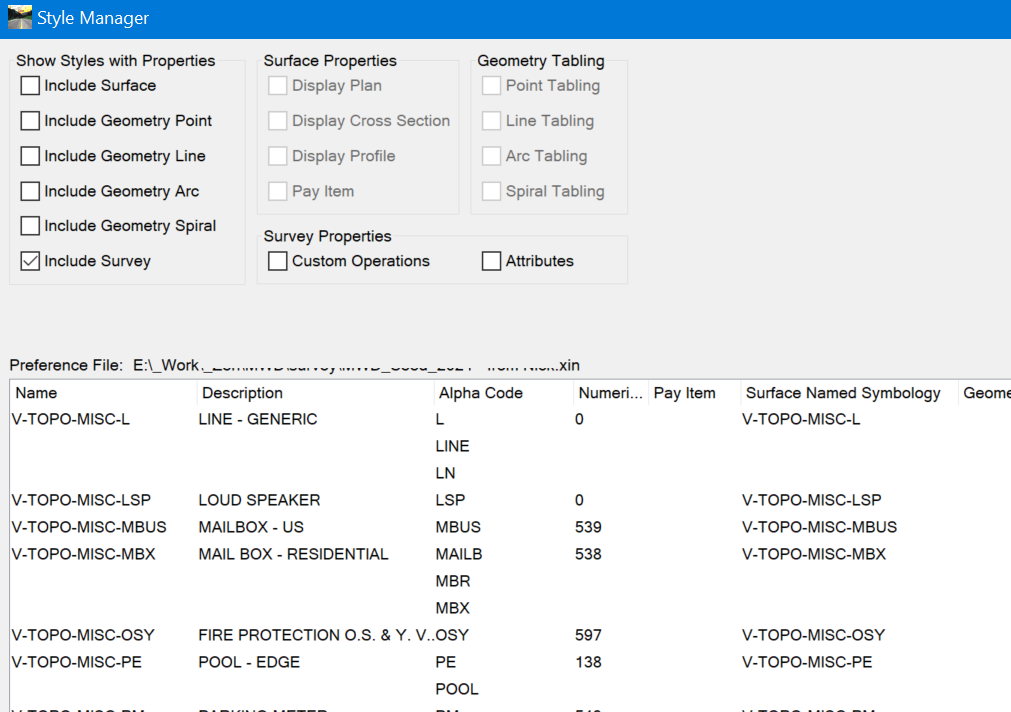 " class="bg-dark-subtle"}Feature Style Manager{/tip}- shows the attributes of the Feature Styles, sortable by header, filterable by symbology. No export.
 - {tip title="Named Symbology Manager" content="
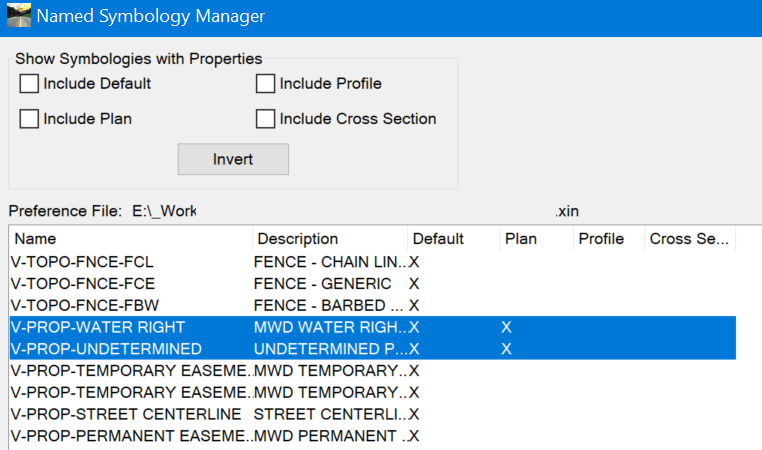 " class="bg-dark-subtle"}Symbology Manager{/tip}- meh, lists Named Symbology, Description, and whether Default, Plan, Profile or Cross Section defined. Filters. No export.
 - Preferences Manager - allows a broad look into what Preferences are defined for every tool.
Reports XSL: XIN folder
All reports are exportable to Excel.
- {tip title="FeatureStyles.xsl" content="
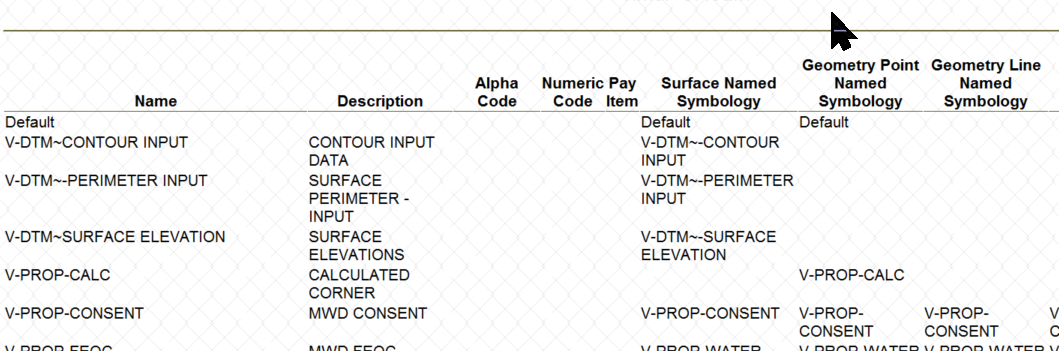 " class="bg-dark-subtle"}FeatureStyles.xsl{/tip} shows the attributes of the Feature Styles - good for listing the Named Symbologies
 - {tip title="NamedSymbologiesUse.xsl" content=" " class="bg-dark-subtle"}NamedSymbologiesUse.xsl{/tip} lists the Named Symbologies, the Feature Styles they're used in, and its Type (Inclusive, Surface, Point, Line, Arc...)
- {tip title="MissingNamedSymbology.xsl" content="
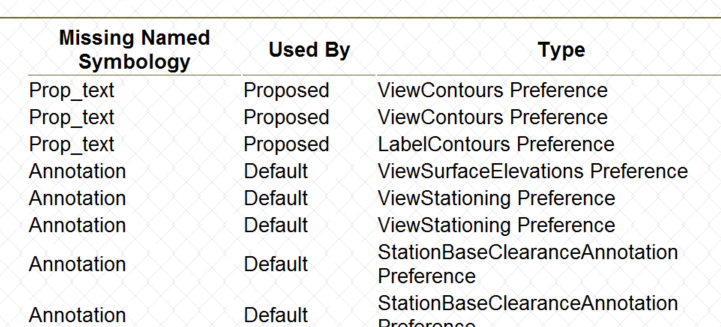 " class="bg-dark-subtle"}MissingNamedSymbology.xsl{/tip} - Tool Preferences can (should) use Named Symbologies to standardized graphic output. This report should show which Named Symbologies are called from which Preferences but aren't found.
| Feature Styles to Feature Definitions | seldom a 1:1 - there is generally a naming convention change |
|
Named Symbologies to Feature Symbologies | seldom a 1:1 - there is generally a naming convention change | Element Templates |
|